





How to generate QR codes/links for meeting sign-in/seat query through SeatGo?
SeatGo is a professional conference seat arrangement management platform dedicated to providing full - process digital solutions for various conferences and events. It integrates functions such as seat query, event registration, and electronic check - in, revolutionizing the traditional conference management model and helping event organizers improve conference management efficiency by over 90%. It is suitable for large, medium, and small - scale conferences, summits and forums, academic conferences, press conferences, etc.
{seatgo}
### SeatGo includes the following functions:
- Check - in/Seat query: Enter your name/phone number to check in/view your seat number/table number; display the theme, time, location, process, program list, and agenda of the conference or event.
- Display of venue layout and seat distribution maps.
- Navigation function for the location of the conference or event.
- Multiple ways to enter the event page: QR code and link. - Dynamic QR code/printed fixed QR code, which supports changing seat information at any time without replacing the QR code.
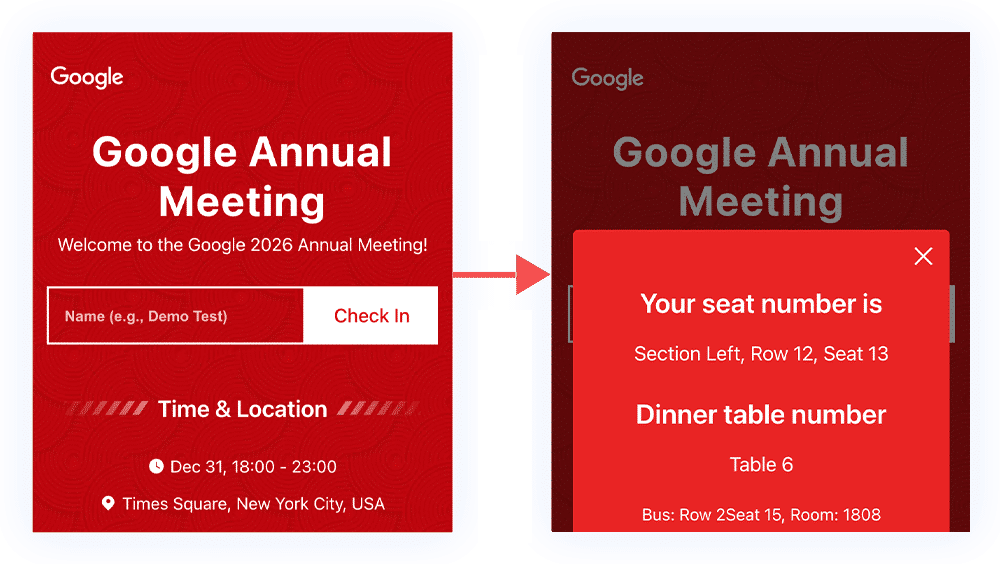
### So, how to create a dynamic QR code for check - in and seat query?
1. Enter the tool operation background: Register an account and log in.
2. Create a check - in and seat query event:
- Select the type: Find and click the [Create Check - in Event] option in the navigation bar, choose the [Create Conference Event] type, and configure the content as prompted.
- Conference event page configuration: The entire page supports customization according to the event. There are multiple background templates to choose from. Fill in the event information in sequence. You can choose not to display the unnecessary sections. After completing the filling, click [Create/Update Event] at the bottom of the page to proceed to the next step.
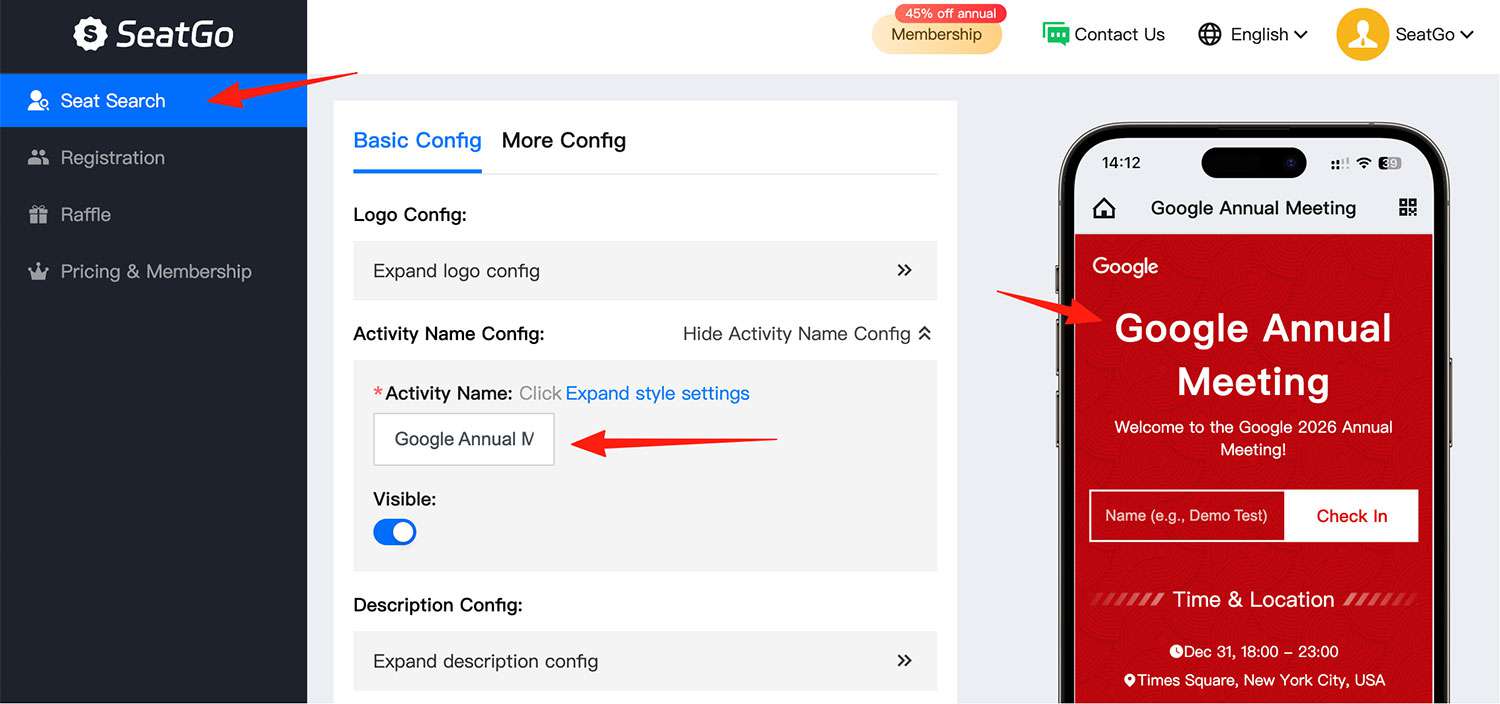
3. Import personnel information in batches: You can click [Event Details] to enter this page, download the template form, and upload the seat information of the guests.
4. Obtain and use the QR code: Simply save and use the QR code pattern generated by the system. You can save the QR code first, print it, and then upload/change the seat information. Each event corresponds to a fixed QR code.
Latest News
Notice
-
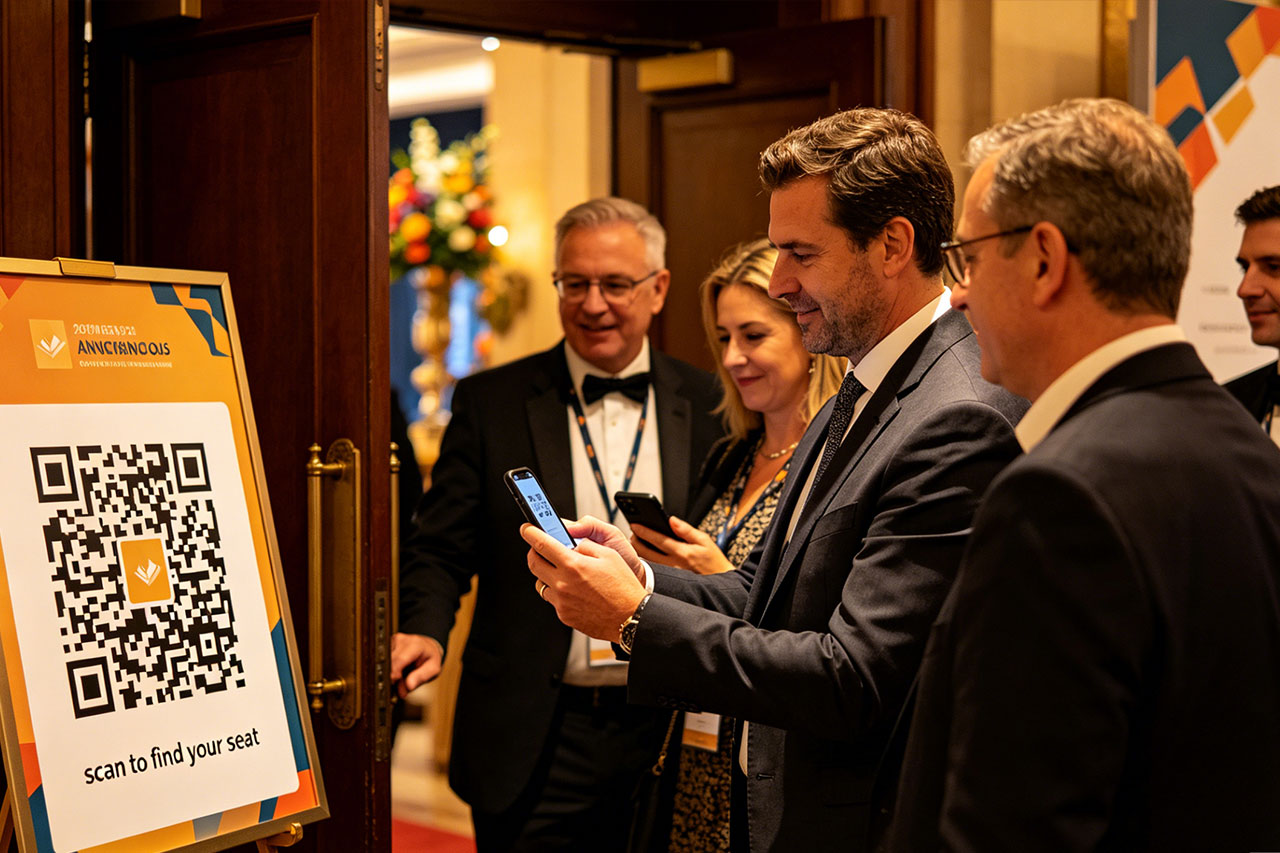 How to use QR codes to create an event seating chart? 2026-04-15
 -
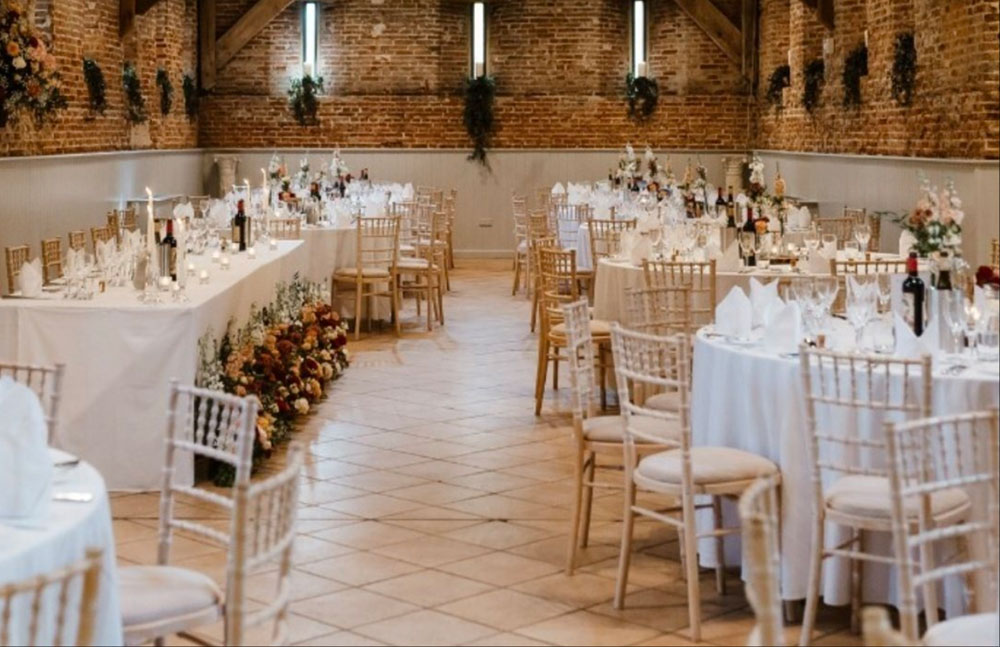 Wedding Digital Seating Chart,How to Plan Who Should Sit Where 2026-04-15
 -
 How to generate QR codes/links for meeting sign-in/seat query through SeatGo? 2026-04-14
 -
 How can a meeting use SeatGo to implement QR code check-in and seat query? 2026-04-14
 -
 How to upload seat information of attendees in batches when using SeatGo? 2026-04-13

Related News